 By skyforbes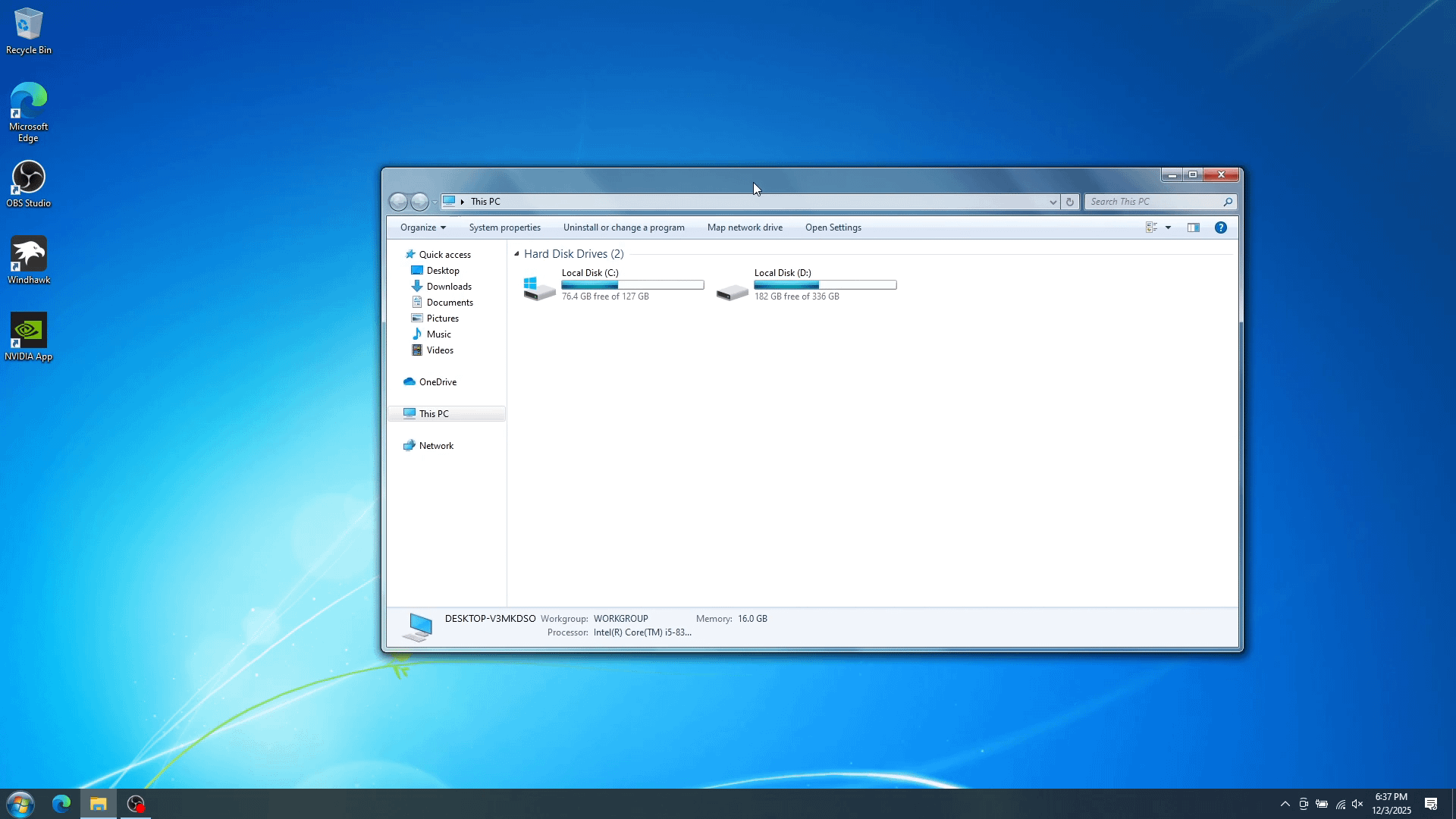

Note: For the Windows 7 look, I haven't found an efficient way to the do the taskbar. You can get functionally close by manually turning off things like the search box, task view, etc.
The appearance these steps provide looks best at 100% display scaling.
Here are the basics (do this at your own risk):
- Open-Shell
- Download additional files from Classic Shell forums:
- For Windows 7 look: Download "WIN7LIKE COMBO revE.skin7" from the "WIN7LIKE (Windows 7 style)" topic. Also download "WIN7 start buttons Unpremultiplied.zip" from the "I don't believe it Win7 premultiplied" topic.
- For Windows Vista: Download "VISTALIKE PowerButton Fix RevD.zip" from the "Windows Vista Start Menu Skin" topic. It's on page 2. Extract the files.
- The skin7 files go in "C:\Program Files\Open-Shell\Skins"
- For Windows 7 look: Extract the zip for the start buttons and then set the custom start button image. I recommend starting with the regular size.
- Disable these options in the Search Box tab for a better search experience:
- Search the system path
- Search for keywords
- Match parts of words
- Download additional files from Classic Shell forums:
- Windhawk mods
- UXTheme hook
- UIFILE Override
- Restore Button Pulse Animation
- Aerexplorer (Windows 10 only)
- For Windows Vista look: Change "Aerexplorer" settings to Windows Vista (read the description of each option).
- Legacy File Copy
- Eradicate Immersive Menus (Note: Some options may disappear on context menus)
- DWMBlurGlass
- You'll need to download the Symbol files
- Restore Win7 style titlebar button size
- Enable Win7 style titlebar button glow
- Effect type: Aero
- Make sure to Save then Install
- For Windows Vista look: Advanced steps for smaller window buttons:
- Check out the DWMBlurGlass issue "Option for Vista-sized titlebar buttons" on GitHub. Make sure to make uninstall first and make copy of the DLL. The HxD editor should already be in Insert mode (replace as you type), and everything is on one line.
- For Windows Vista look: RetroBar
- Set to Windows Vista Aero Theme
- Enable the following settings (feel free to adjust how you like):
- Allow font smoothing
- Lock the taskbar
- Show window previews (thumbnails)
- Slide taskbar buttons
- Aero11
- Extract to "C:\Windows\Resources\Themes"
- In Windows Settings, apply either "Aero11: Vista" or "Aero11: Seven"
Some suggestions not showcased:
- You can spend some time making the Start menu more accurate not only experimenting with the skin settings, but the rest of Open-Shell's options.
- If you have Windows Vista or 7 installation media, you can copy cursors, sounds, etc. I'd recommend making a new scheme for each so you can easily switch back.
- If you want Windows Vista or 7 icons, copy resource files like "imageres.dll" to a new folder and use the "Resource Redirect" Windhawk mod. Read the description of the mod for instructions.
- Don't get hung up on making it look exactly like Windows 7 or Vista. You'll lose a lot of convenience made available in recent versions. Settle for a healthy mix. Feel free to customize it how you want to, your very own version of Windows 7 or Vista!
FAQ: Will this work in Windows 11?
Mostly, but there might be small issues here and there. The window borders won't be thick since I haven't found a reliable, safe way around that. I'd recommend using ExplorerPatcher in place of the last three mods since "Aerexplorer" does not work on Windows 11 and it would also prevent conflicts. You may also decide to skip ExplorerPatcher entirely if you prefer the tabs of the modern File Explorer.
Final notes:
Since no system files were modified (at least to my knowledge) with these programs, it's very easy to undo. Just close programs or uninstall them (on some, through the program itself) and then choose a default Windows 10 or 11 theme.
Enjoy! 🙂